
Separate publishing requirements from promotion guidance
Google Play has baseline rules for publishing screenshots and additional recommendations for formats that use screenshots across the store. A listing needs at least two screenshots across supported device types. You can upload up to eight for each device type. High-resolution sets can also support recommendation eligibility.
Use Android-first product imagery
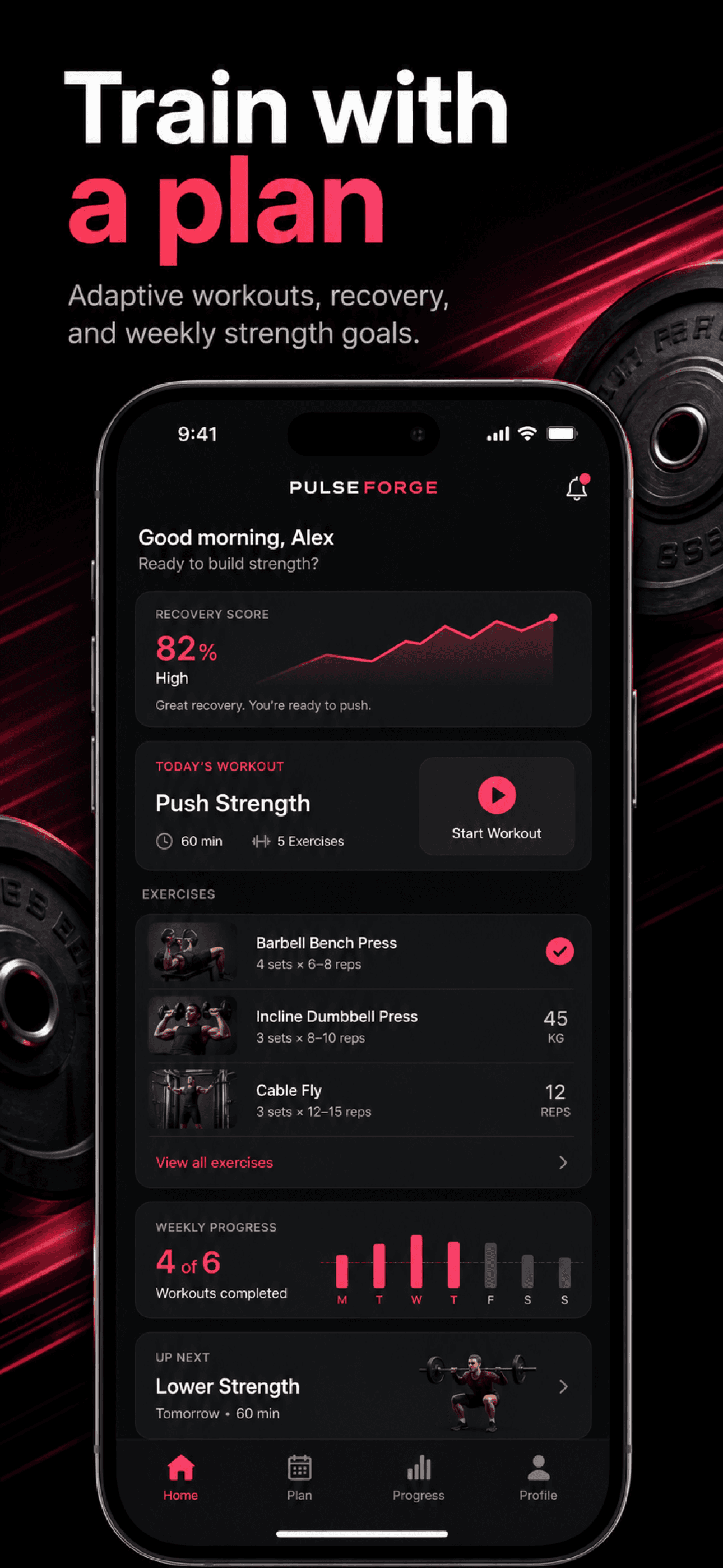
Show the actual Android experience with current interface states, realistic data, and the navigation patterns users will see after installation. Do not reuse iPhone UI inside an Android frame. Device-specific screenshots help people understand how the app works on the screen they use.
- Show the current in-app experience
- Use Android UI inside Android device artwork
- Lead with a clear user benefit
- Keep important UI visible at small sizes
- Create separate phone and tablet sets
- Localize screenshots that contain text
Plan the first four screenshots as a complete introduction
Google recommends at least four high-resolution phone screenshots for recommendation formats that use screenshots. Treat those first four as a compact story: the main outcome, the strongest proof, the core workflow, and a supporting capability. Later screenshots can answer narrower questions.
Keep the interface central to the composition
Marketing copy and backgrounds can explain the product, but the visible app experience should remain clear. Google advises screenshots to demonstrate the actual app or game. Avoid compositions where decoration hides the interaction that supports the headline.
Prepare assets for large screens
If the app supports tablets, provide screenshots that reflect the real large-screen layout. Do not stretch a phone capture into a tablet canvas. Google provides separate large-screen guidance, including resolution and orientation recommendations for eligible promotional formats.
Keep claims accurate and policy-safe
Screenshots, headlines, badges, and promotional artwork must describe the app truthfully. Avoid unsupported rankings, misleading pricing claims, or interface states that do not exist. Policy accuracy protects both the review process and user trust.
Localize text and product context together
Google recommends separate screenshots for each supported language when the images contain text. Adapt the marketing message, visible interface, dates, measurements, and sample data. Review the final asset at phone size and confirm that every line remains readable.
- At least two valid screenshots in the listing
- Up to eight assets for each device type
- Four high-resolution phone images for wider eligibility
- A required 1024 by 500 feature graphic
- Separate large-screen assets where supported
- Policy review for copy, badges, and visible UI